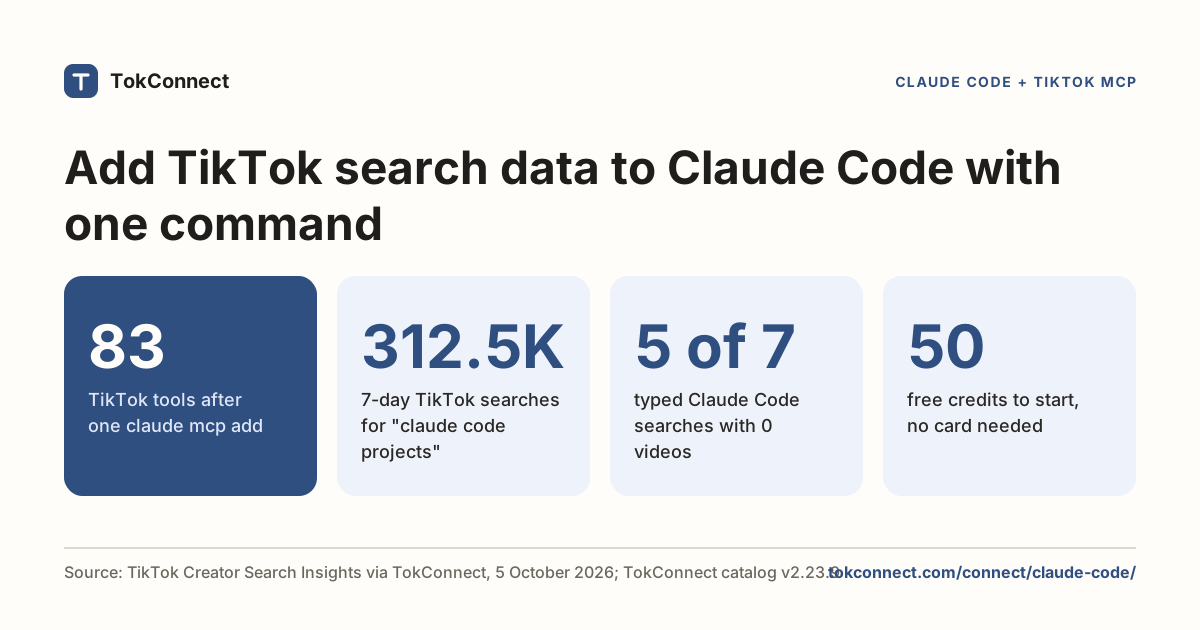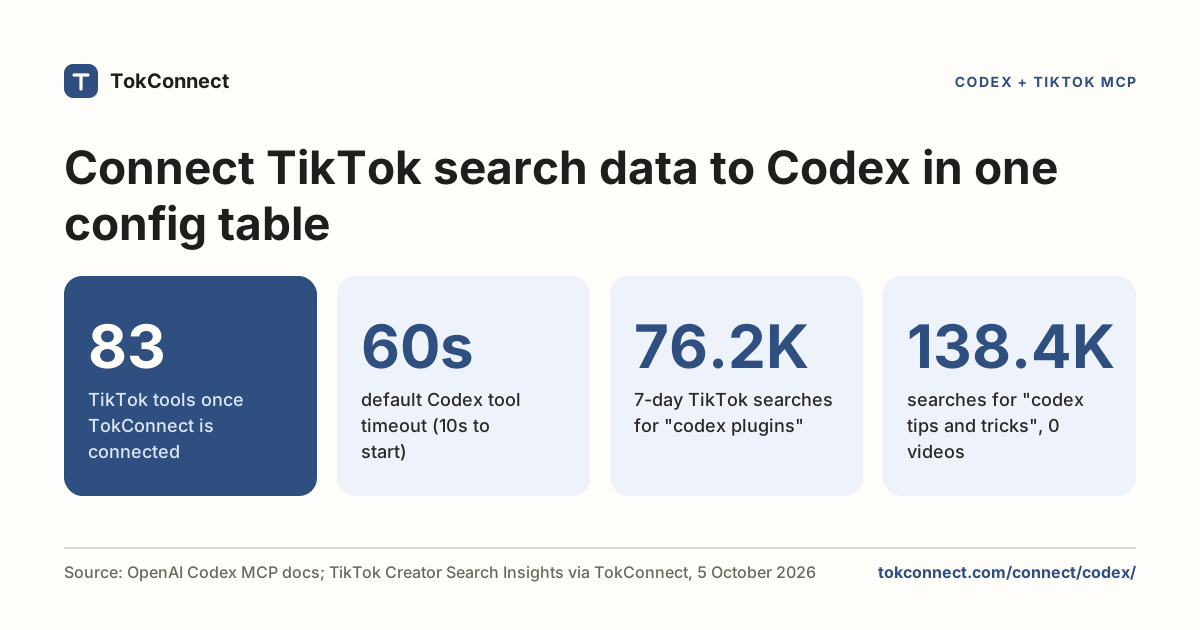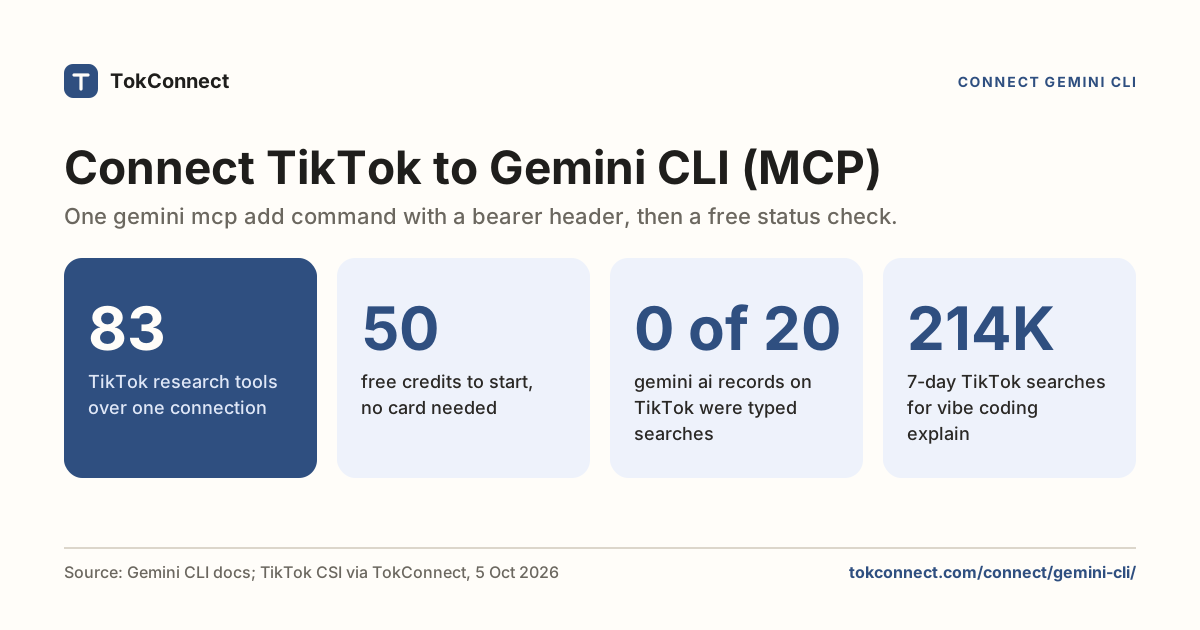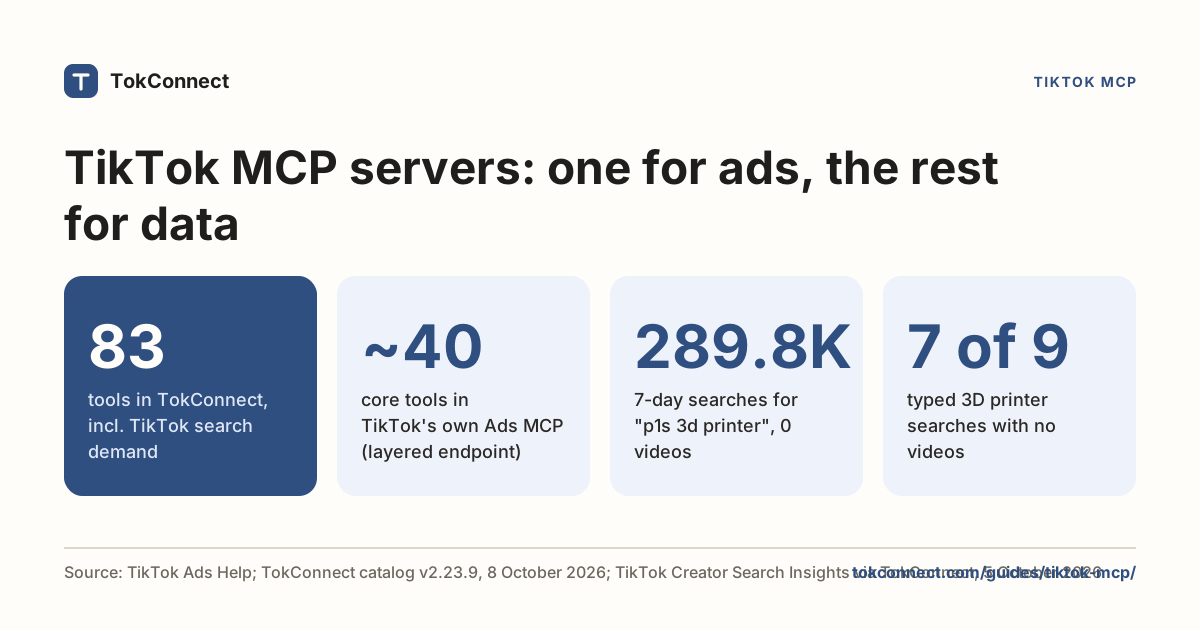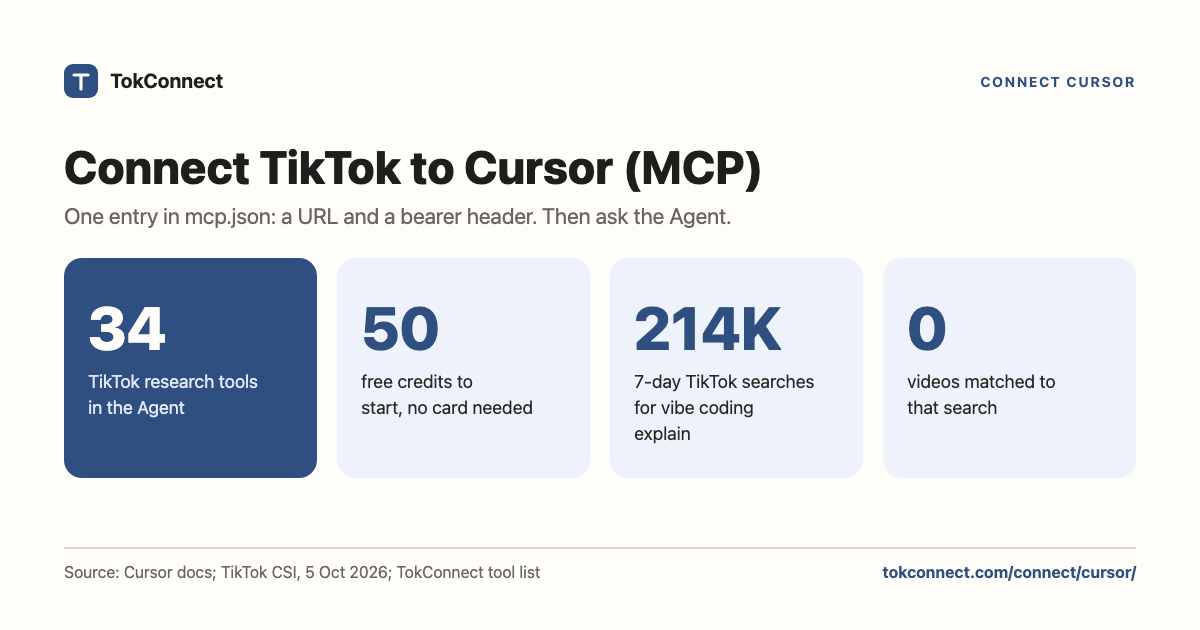

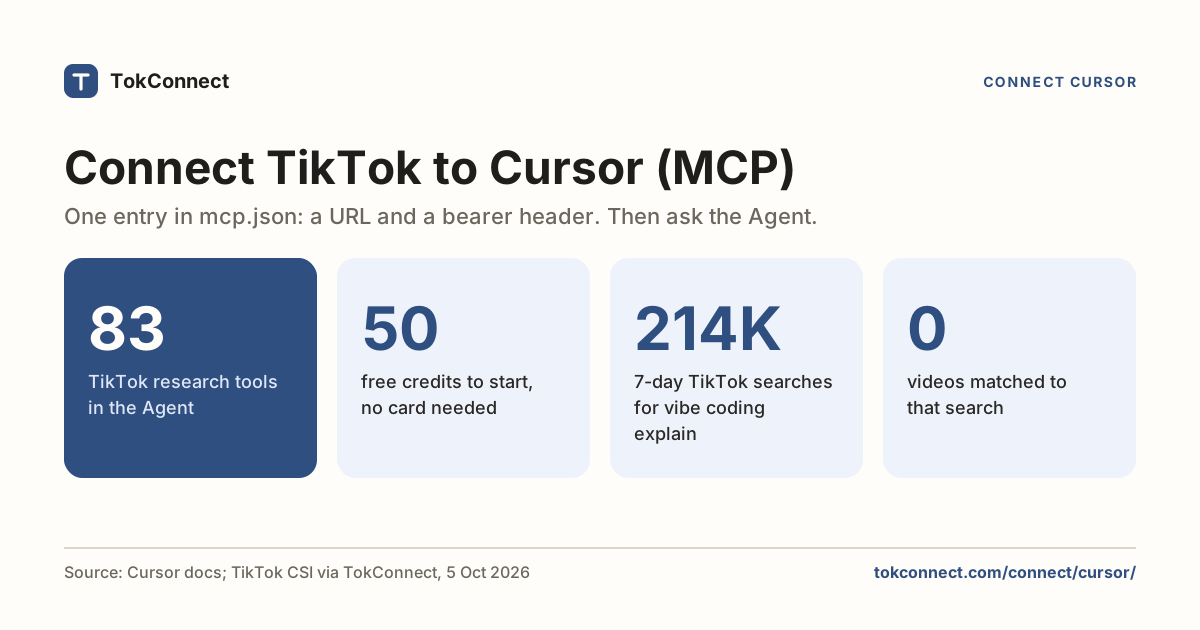
Give Cursor all of TikTok. One entry in ~/.cursor/mcp.json connects TokConnect, and Cursor's Agent can see what people search, watch, say and buy: search demand, videos, comments, transcripts, creators, hashtags, sounds and TikTok Shop sales, 34 tools in all.
- Get your key. Copy it from app.tokconnect.com/api-key. No key? Use an entry with only the
urland sign in (see Sign-in instead of a key). - Add the entry. Put the
tokconnectblock below into~/.cursor/mcp.jsonand exportTOKCONNECT_TOKENwith your key. - Restart and ask. Open Customize, check that tokconnect shows 34 tools, then ask the Agent, for example, "What do people search on TikTok about my product that no video answers?"
Connected, Cursor's Agent answers TikTok questions with real numbers while you code: search demand, videos, comments, creators and Shop sales.
Every plan, Free included, gets all 34 tools. Free gives 50 credits once, one credit pays for one lookup and failed lookups cost nothing. Paid plans start at $34.99 a month billed yearly ($49 billed monthly), with 500 credits a month on Starter.
- Add one entry to
~/.cursor/mcp.json: the URLhttps://mcp.tokconnect.com/mcpand an Authorization header. Customize then shows tokconnect with 34 tools. Cursor documents no transport field for remote servers, so do not add one. - Cursor expands
${env:TOKCONNECT_TOKEN}inside header values, which keeps the key out of the file. Remote servers do not support envFile, so set the variable in your shell profile or system environment. - Define the server in one file only: Cursor's docs do not say which wins when the global and project files both define it.
What you can ask once connected
Ask in plain words. No tool names needed.
Use TokConnect. What are people searching on TikTok about [your niche] that no video answers yet?
Paste it into Cursor once TokConnect is connected.
Use TokConnect. What [your product] is selling on TikTok Shop this month, and which creators are selling it?
Paste it into Cursor once TokConnect is connected.
Use TokConnect. What do people say in the comments under the top [your product] videos on TikTok?
Paste it into Cursor once TokConnect is connected.
The config
Create or edit ~/.cursor/mcp.json. That file is global, so the server shows up in every project you open:
{
  "mcpServers": {
    "tokconnect": {
      "url": "https://mcp.tokconnect.com/mcp",
      "headers": {
        "Authorization": "Bearer ${env:TOKCONNECT_TOKEN}"
      }
    }
  }
}
Then export the variable before you launch Cursor:
export TOKCONNECT_TOKEN="YOUR_TOKCONNECT_KEY"Cursor's MCP docs document ${env:NAME} interpolation inside header values, which is the reason to prefer it over pasting the key. You can write the key literally instead, and for a personal machine that is a fair trade, but then the file itself is the secret.
There is also a project form at .cursor/mcp.json in the repo root. Same shape. Keep the literal key out of that one, since it travels with the repo. Remote servers do not support envFile, so the variable has to come from your shell profile or system environment, as Cursor's docs say.
Cursor's remote examples carry only url and headers. The transport is inferred from the URL, and no type or transport field is documented for remote servers. Adding one is a guess, so do not.
Where the key goes
In the Authorization header, as Bearer, a space, then the key. If Cursor is launched from the dock rather than a terminal, it may not see a variable you exported in your shell. Either set it in your login environment, or write the key into the global file and keep that file to yourself.
Define tokconnect in one file only. Cursor's docs do not say which file wins when the global and project files both define the same server name, and a second copy is easy to forget while you are debugging a header you already fixed in the other file.
Sign-in instead of a key
Cursor's docs also describe OAuth for remote servers, using dynamic client registration unless you supply a static client ID. TokConnect supports that sign-in, so an entry with only "url": "https://mcp.tokconnect.com/mcp" and no headers should send you to a TokConnect consent page instead. That route follows Cursor's docs; the key route above is the one this page walks through.
Your first TikTok MCP call in Cursor
Restart Cursor. Open Customize in the sidebar. It should show tokconnect with 34 tools. The toggle there switches the server off without deleting it, which is useful when you want the Agent to stop reaching for TikTok data mid-task.
Then ask the Agent for the cheapest call on the server:
Use the tokconnect MCP server. Call demand_keywords with keyword "protein" and limit 3, and show me the raw result.
Paste it into Cursor once TokConnect is connected.
That returns:
{
  "count": 3,
  "suggestions": [
    { "text": "protein" },
    { "text": "protein for gym" },
    { "text": "protein recipes" }
  ]
}
Data: TikTok autocomplete via TokConnect, pulled 19 September 2026. Open the snapshot. Autocomplete is live, so your third line may differ.
Three strings back means the file, the header and the server all work. Next, ask for TikTok's own search demand, the searches no video answers, or TikTok Shop sales estimates; the TikTok MCP guide maps everything, and our TikTok MCP server comparison shows how TokConnect compares with other servers.
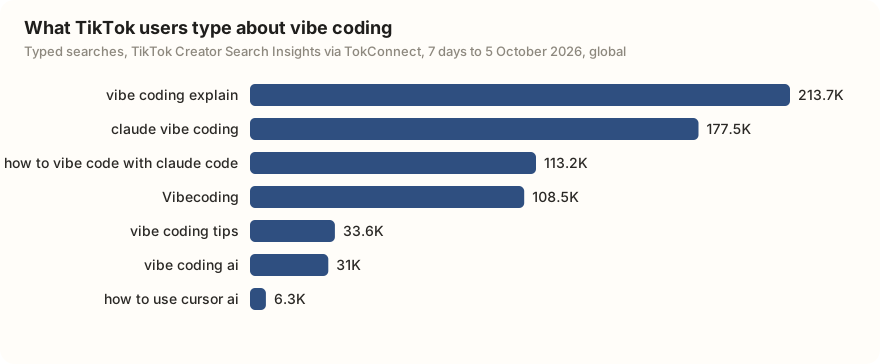
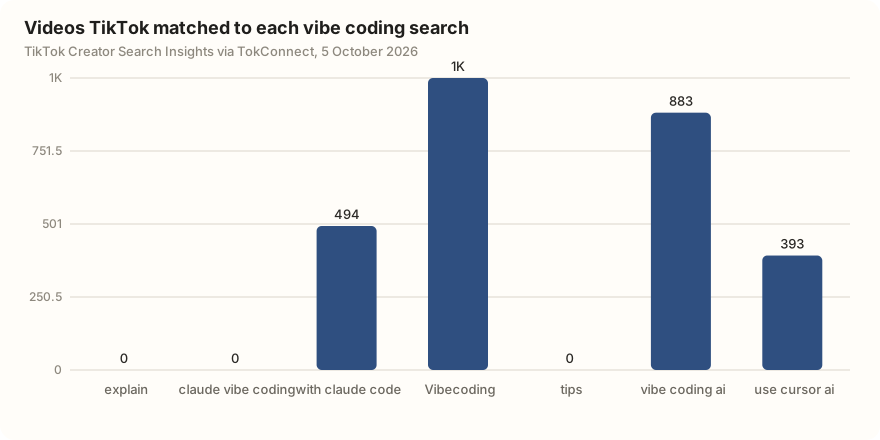
In the 7 days to 5 October 2026, "vibe coding" returned 20 topics: 10 typed searches and 10 TikTok topic groups. A separate search for "cursor ai" was almost all about mouse cursors; its one relevant typed search, "how to use cursor ai", had 6,296 searches.
Use the tokconnect MCP server. Call demand_find_topics for "[your product or niche]" with limit 20, drop TikTok's generated topic groups, and write the typed searches with their 7-day searches and video counts to a CSV in this repo.
Paste it into Cursor once TokConnect is connected.
For developers: the 34 tools
The 34 tools cover TikTok's search demand (demand_find_topics, demand_topic, demand_keywords), videos, comments and captions (video_search, video), creators, sounds, hashtags, places and LIVE, the live TikTok Shop catalogue (shop_browse, product, shop) and Shop Analytics: TikTok Shop sales estimates from product_top_selling, shop_top_selling, creator_top_selling, video_top_selling, live_top_selling and category_trends. The server also ships six MCP prompts: winning products, find affiliates, competitor shop, product deep-dive, niche research and content ideas. Clients that support MCP prompts list them next to the tools.
Use TokConnect. Call product_top_selling for "[your product]" with window 30d and limit 10. Show each product's price, estimated revenue, estimated units and number of creators selling it, then call product with method creators on the top one and list who drove its sales.
Paste it into Cursor once TokConnect is connected.
Three errors, and what they mean
| What you see | Cause | Fix |
|---|---|---|
| No server in the panel after restart | Invalid JSON, or the file is in the wrong place. | Open the Output panel with Cmd+Shift+U (Ctrl+Shift+U on Windows and Linux) and pick MCP Logs. Parse errors show up there. |
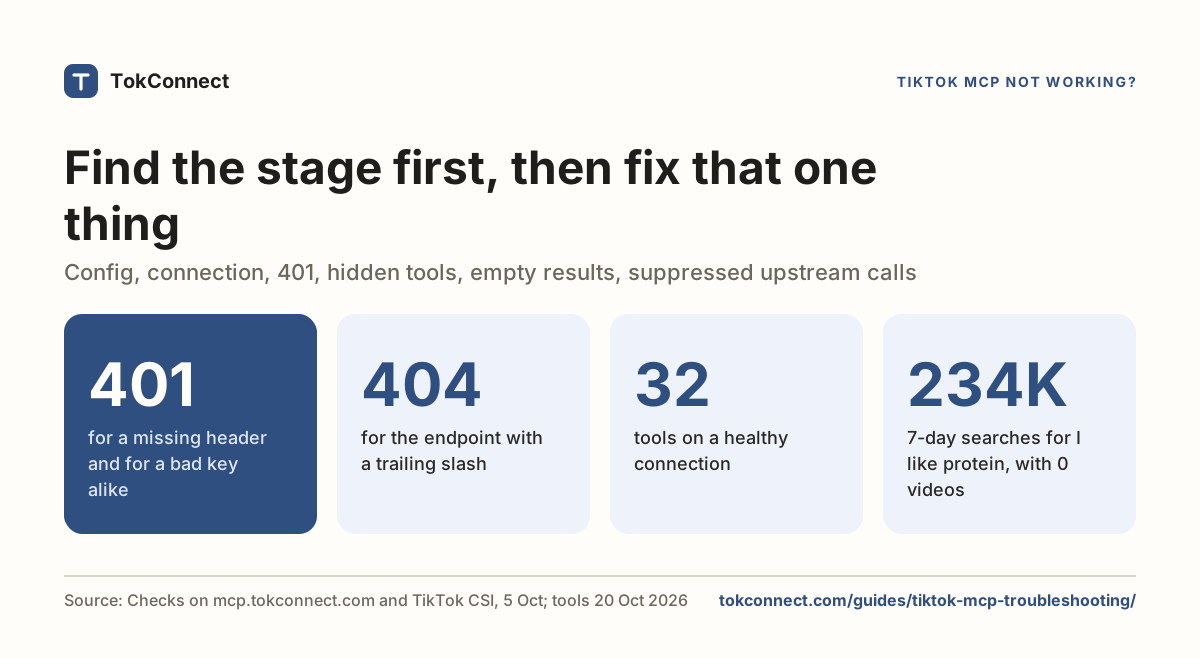
| 401 from the server | ${env:TOKCONNECT_TOKEN} resolved to nothing, so the header read Bearer and a space. | Check the variable is visible to the app, not only to your terminal. Or paste the key literally to rule the variable out. |
| Server connected, Agent never calls it | The individual tool is toggled off, or the prompt did not name it. | Enable the tools in the panel, then name demand_keywords in the prompt. Cursor can show a healthy server whose tools are all disabled. |
An empty result is TikTok's answer, not a broken connection. The troubleshooting guide takes the stages in order.
Remove it, or rotate the key
Delete the tokconnect object from every mcp.json that defines it, global and project, keep the JSON valid, and restart Cursor. Check the panel before you assume the key is out of use, because the project file can keep a copy alive.
To rotate, make a new key on the same connect page as step 1. If you used ${env:...}, change the exported value and restart. If you pasted the key, replace the string and restart.
Same server elsewhere: Claude Code, Codex, Gemini CLI.
How we got these numbers
Setup facts come from Cursor's MCP documentation, read on 5 October 2026: config file locations, the remote entry shape, ${env:NAME} interpolation, OAuth for remote servers, the Customize toggle and MCP Logs. The MCP protocol details come from the transport and authorization specs. TokConnect's OAuth sign-in was tested end to end with a script on 28 September 2026 (test notes); the Cursor steps follow Cursor's docs, and the example results on this page come from the TokConnect server over MCP rather than from a Cursor session.
The TikTok figures come from two Creator Search Insights topic searches ("cursor ai" and "vibe coding", 20 topics each) made through TokConnect on 5 October 2026. Searches are TikTok's global count for the last 7 days; videos are those TikTok matched to the topic. We left out TikTok's topic groups (5,000,000 or more, or 1,000,000 or more with a first daily reading under 5% of the last), unrelated searches such as "sweezy cursor" and the smallest vibe coding searches; the snapshot has every record. The autocomplete result is from 19 September 2026. Data: Cursor and vibe coding searches, autocomplete call, tool catalog, 21 October 2026 snapshot.
Key statistics
Cursor reads MCP servers from
~/.cursor/mcp.jsonfor every project and.cursor/mcp.jsonfor one project, according to Cursor's MCP docs.Cursor resolves
${env:NAME}variables in the command, args, env, url and headers fields of mcp.json, according to its MCP docs.TokConnect gives Cursor's Agent 34 TikTok research tools, TikTok Shop sales estimates included, and new accounts start free with no card.
All 5 statistics
"vibe coding explain" was searched 213,735 times on TikTok in the 7 days to 5 October 2026, and TikTok matched 0 videos to it.
"how to use cursor ai" was searched 6,296 times on TikTok in the 7 days to 5 October 2026, with 393 videos matched.
Frequently asked questions
Where is Cursor's mcp.json file?
Cursor reads ~/.cursor/mcp.json in your home folder for servers available in every project, and .cursor/mcp.json in a project's root for that project only, per its MCP docs. You can also manage servers from Customize in the sidebar.
Do I need a type or transport field for a remote server in Cursor?
No. Cursor's MCP documentation shows remote servers with only url and headers, and infers the transport from the URL. The type field appears in its stdio examples only, so adding it to a remote entry is a guess.
The server is connected but the Agent never calls it. Why?
Two usual causes. The individual tools are disabled in the Customize panel, which Cursor allows on an otherwise healthy server. Or the prompt is too vague. Name the tool: "call demand_keywords with keyword protein and limit 3" works where "what's trending on TikTok" does not.
Can Cursor connect to a TikTok MCP server without an API key?
Yes. Cursor's docs describe a browser sign-in for remote servers, and TokConnect supports it. An entry with only the url should open a TokConnect consent page. This page walks through the key route, which follows Cursor's docs.
How many TikTok tools does Cursor get?
34: search demand from Creator Search Insights, videos, comments and captions, creators, sounds, hashtags, places, LIVE and TikTok Shop sales estimates. New accounts start free with no card. The TikTok MCP guide lists them.
Sources and data
- Model Context Protocol (Cursor docs, checked 5 October 2026)
- Cursor Marketplace
- MCP transports: Streamable HTTP (Model Context Protocol specification)
- MCP authorization (Model Context Protocol specification)
- Connect to remote MCP servers (Model Context Protocol docs)
- TikTok searches about Cursor and vibe coding, pulled 5 October 2026 (snapshot)
- TikTok autocomplete pulled 19 September 2026 (snapshot)