
Give Gemini CLI all of TikTok. One command connects TokConnect, and Gemini can then pull live TikTok searches, videos, comments, creators and TikTok Shop sales while you work.
- Get your key. Copy it from app.tokconnect.com/api-key. No key? Add the server without
--headerand run/mcp auth tokconnectin a session. - Add TokConnect. In a terminal, run
gemini mcp add --transport http --header "Authorization: Bearer YOUR_TOKCONNECT_KEY" tokconnect https://mcp.tokconnect.com/mcp, with your key in place ofYOUR_TOKCONNECT_KEY. - Check, then ask. Run
gemini mcp list. When it says Connected, start Gemini and ask, for example, "What protein products are selling on TikTok Shop this month, and who sells them?"
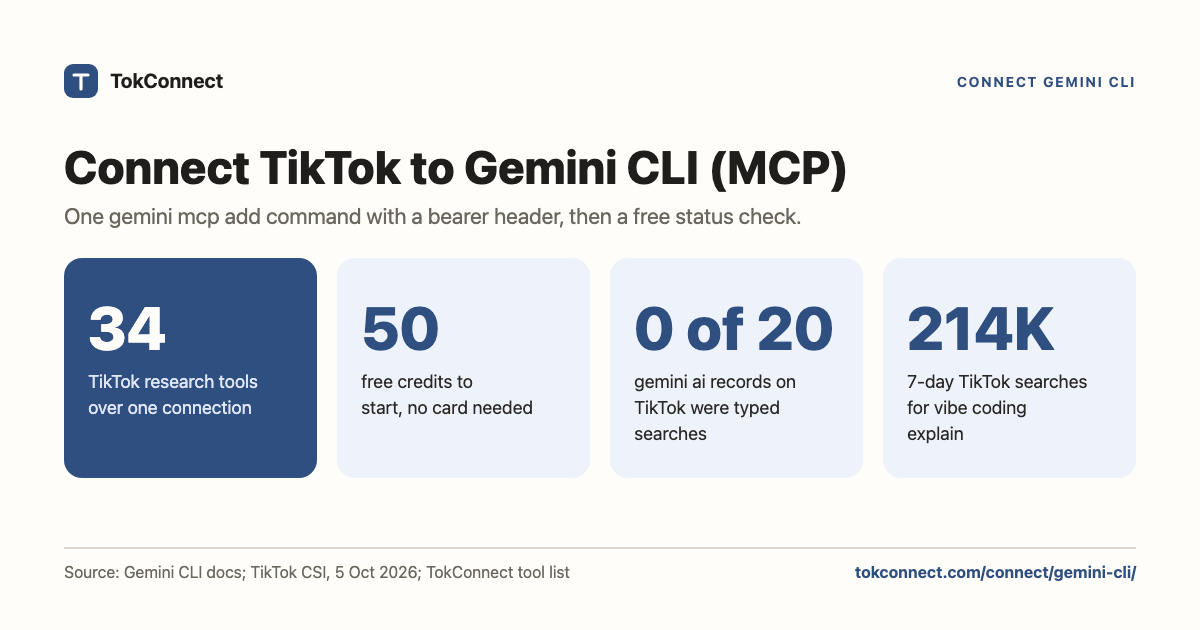
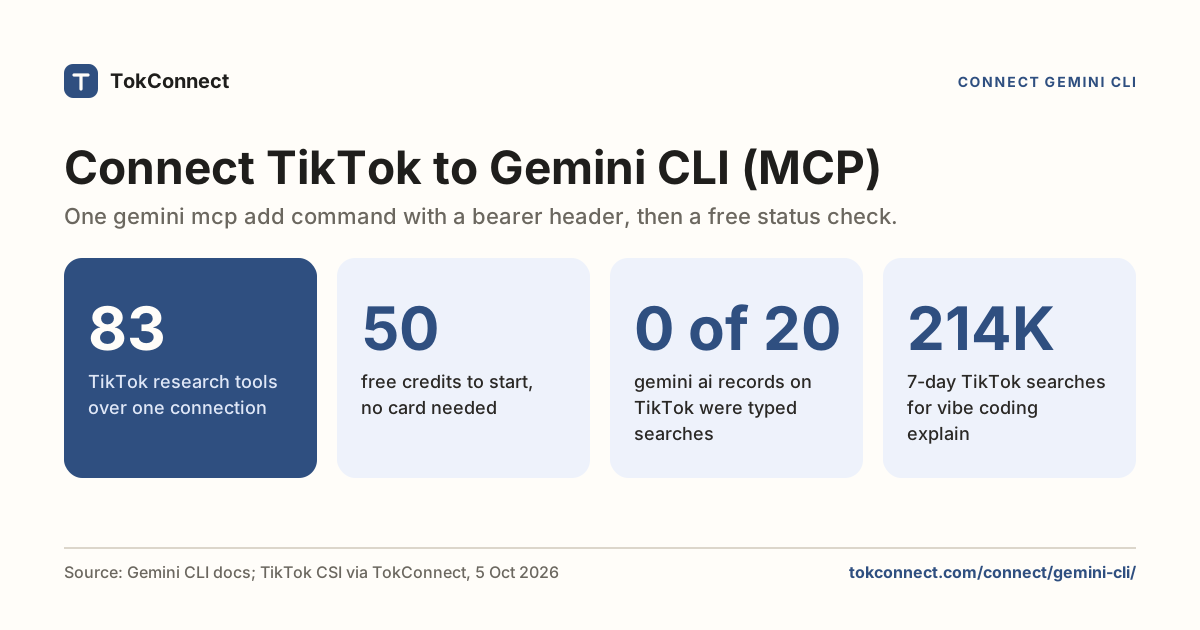
Gemini CLI then has 34 TikTok tools to draw on, and gemini mcp list tells you the server connected before you run a single one. The full command options are in the setup details below.
Every plan, Free included, gets all 34 tools. Free gives 50 credits once, one credit pays for one lookup and failed lookups cost nothing. Paid plans start at $34.99 a month billed yearly ($49 billed monthly), with 500 credits a month on Starter.
What you can ask once connected
Use TokConnect. What's selling on TikTok Shop in [your niche] this month, and who sells it?
Paste it into Gemini CLI once TokConnect is connected.
Use TokConnect. What do people search on TikTok about [your niche] that no video answers yet?
Paste it into Gemini CLI once TokConnect is connected.
Use TokConnect. Which creators drive the most sales for [a brand], and what do their videos open with?
Paste it into Gemini CLI once TokConnect is connected.
- One command connects it:
gemini mcp add --transport http --header "Authorization: Bearer YOUR_TOKCONNECT_KEY" tokconnect https://mcp.tokconnect.com/mcp. Add--scope userto keep the key out of your repo. - Gemini CLI then has 34 TikTok tools: search demand, videos, comments, creators, sounds, hashtags and TikTok Shop sales estimates.
- Run
gemini mcp listfirst. It tells you the server connected before you spend a question. - Keep the key in the user-scope settings file, or skip the key and sign in with Google instead.
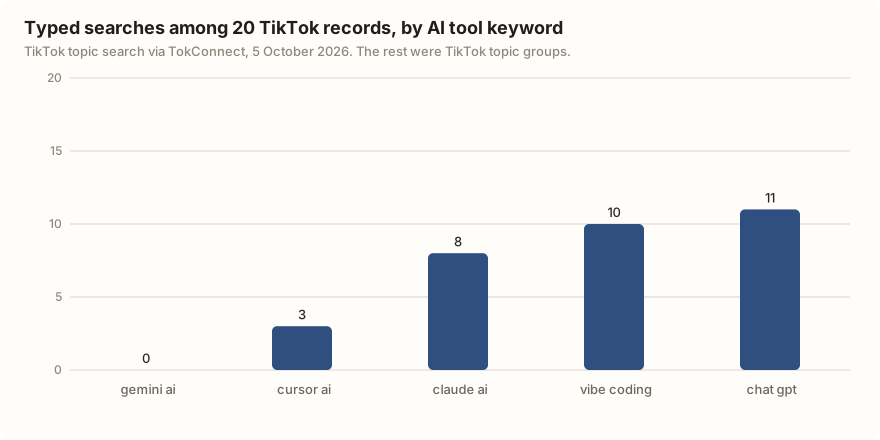
- Not every TikTok record is a typed search. For "gemini ai", all 20 records were TikTok topic groups; the page shows how to keep the phrases people actually type.
Steps follow Gemini CLI's MCP server docs, checked 5 October 2026. The add, list and remove commands were run on Gemini CLI 0.25.0 on 19 September 2026, and its flags re-read on 5 October (client checks). TokConnect tested its OAuth sign-in end to end on 28 September 2026 with a script acting as the client (test notes).
Setup details: the config
gemini mcp add --transport http \
  --header "Authorization: Bearer YOUR_TOKCONNECT_KEY" \
  tokconnect https://mcp.tokconnect.com/mcp
That writes to .gemini/settings.json in the current folder, because project is the default scope. Add --scope user to put it in ~/.gemini/settings.json instead, which is what you want for a key you use everywhere.
Written by hand, the entry looks like this:
{
  "mcpServers": {
    "tokconnect": {
      "httpUrl": "https://mcp.tokconnect.com/mcp",
      "headers": {
        "Authorization": "Bearer YOUR_TOKCONNECT_KEY"
      },
      "timeout": 30000
    }
  }
}Gemini CLI's docs reserve url for an SSE endpoint and use httpUrl for Streamable HTTP. Version 0.25.0's mcp add wrote a third shape of its own: url plus "type": "http". Let the command write the file and you never have to pick.
Where the key goes
Into the headers object, as Bearer, a space, then the key. Gemini CLI stores whatever you pass to --header as a literal string. The docs say environment variables are expanded in the env block only, so a ${TOKCONNECT_TOKEN} in a header would be sent as those exact characters and rejected.
Sign-in instead of a key
Gemini CLI's docs also describe OAuth for remote servers: on a 401 it discovers the sign-in service and registers itself, and /mcp auth tokconnect starts or renews the sign-in. TokConnect supports that flow, so adding the server without --header opens a TokConnect consent page and keeps the key out of your settings file. We have not run this sign-in route ourselves in Gemini CLI; it follows Gemini CLI's docs, and the key route above is the one we tested.
With the key route, the settings file holds the real key. Two consequences: the command lands in your shell history, and a project-scoped .gemini/settings.json will be committed unless you stop it. Use --scope user and check the file permissions.
Your first TikTok MCP call in Gemini CLI
Run the status command first, because it costs nothing:
gemini mcp listA healthy entry should report ✓ tokconnect: https://mcp.tokconnect.com/mcp - Connected. Inside a session, /mcp should show the same server with TokConnect's 34 tools. Then try a real request:
Use the tokconnect MCP server. Call demand_keywords with keyword "protein" and limit 3, and show me the raw result.
Paste it into Gemini CLI once TokConnect is connected.
Here is what came back:
{
  "count": 3,
  "suggestions": [
    { "text": "protein" },
    { "text": "protein for gym" },
    { "text": "protein recipes" }
  ]
}
Data: TikTok autocomplete via TokConnect, pulled 19 September 2026. Open the snapshot. Autocomplete is live, so your third line may differ.
Gemini will ask you to confirm the call the first time. That is the default trust: false behaviour, not a permission problem. After that, demand_find_topics gets you TikTok's own search volumes, its feed method gets you content gaps, and product_top_selling gets you TikTok Shop sales estimates; the TikTok MCP guide maps the rest, and our TikTok MCP server comparison shows how the tool set compares.
One thing to know before you trust a demand_find_topics result: many records are TikTok's generated topic groups, not phrases anyone typed. On 5 October 2026 we ran it for five AI tool keywords. For "gemini ai", every one of the 20 records was a group, mostly Gemini image-prompt themes. For "vibe coding", half were typed searches.
Use the tokconnect MCP server. Call demand_find_topics for "[your niche]" with limit 20, keep only the phrases people type (drop TikTok's generated topic groups), and list them with their 7-day searches and video counts.
Paste it into Gemini CLI once TokConnect is connected.
The 34 tools cover TikTok's search demand (demand_find_topics, demand_topic, demand_keywords), videos, comments and captions (video_search, video), creators, sounds, hashtags, places and LIVE, the live TikTok Shop catalogue (shop_browse, product, shop) and Shop Analytics: TikTok Shop sales estimates from product_top_selling, shop_top_selling, creator_top_selling, video_top_selling, live_top_selling and category_trends. The server also ships six MCP prompts: winning products, find affiliates, competitor shop, product deep-dive, niche research and content ideas. Clients that support MCP prompts list them next to the tools.
Use TokConnect. Call product_top_selling for "[your product]" with window 30d and limit 10. Show each product's price, estimated revenue, estimated units and number of creators selling it, then call product with method creators on the top one and list who drove its sales.
Paste it into Gemini CLI once TokConnect is connected.
The autocomplete result above was pulled from the TokConnect server over MCP rather than through a Gemini prompt.
Three errors, and what they mean
| What you see | Cause | Fix |
|---|---|---|
✗ tokconnect ... Disconnected | The CLI could not complete the HTTP handshake. | Re-run gemini mcp list once before changing anything. If it stays down, check the URL ends in /mcp and that nothing local is blocking outbound HTTPS. |
| 401 from the server | A mangled header. A key pasted from a browser often brings a newline with it. | Open the settings file and read the header value back. One space after Bearer, nothing before or after the key. |
| Connected, but tools are missing | includeTools or excludeTools is filtering them. | Remove the filter, confirm the full list appears in /mcp (all 34 tools), then add it back with the names you actually want. |
A tool that runs and returns nothing is TikTok's answer, not a setup fault. The troubleshooting guide separates the stages.
Remove it, or rotate the key
gemini mcp remove tokconnectUse the same scope you added it with, then gemini mcp list to confirm nothing remains. A project entry and a user entry with the same name can both exist, and removing one leaves the other running.
To rotate, make a new key on the connect page, remove the server, and add it again with the new header. Because the old key sat in the settings file in plain text, rotating is also the moment to check that file never reached a commit.
Same endpoint elsewhere: Claude Code, Cursor, Codex.
How we got these numbers
Setup facts come from Gemini CLI's MCP server documentation on GitHub, read on 5 October 2026: settings file locations, the httpUrl and headers keys, the mcp add flags and default scope, environment variable expansion, OAuth discovery, trust and the tool filters. The release number comes from the project's GitHub releases. The key route's commands were run on version 0.25.0 on 19 September 2026; the 5 October client check records the flags.
The TikTok figures come from Creator Search Insights topic searches made through TokConnect on 5 October 2026 ("gemini ai", "vibe coding", "cursor ai", "claude ai" and "chat gpt", 20 records each). Searches are TikTok's global count for the last 7 days. We count a record as a topic group if its 7-day figure is 5,000,000 or more, or 1,000,000 or more with a first daily reading under 5% of the last, or it sits in TikTok's Featured Content, and only quote typed searches as searches. The autocomplete result is from 19 September 2026. Data: Gemini searches and counts, autocomplete call, tool catalog, 21 October 2026 snapshot.
Key statistics
Gemini CLI's
gemini mcp addwrites to the project's.gemini/settings.jsonby default and to~/.gemini/settings.jsonwith--scope user, according to its MCP docs.Gemini CLI expands environment variables only in the
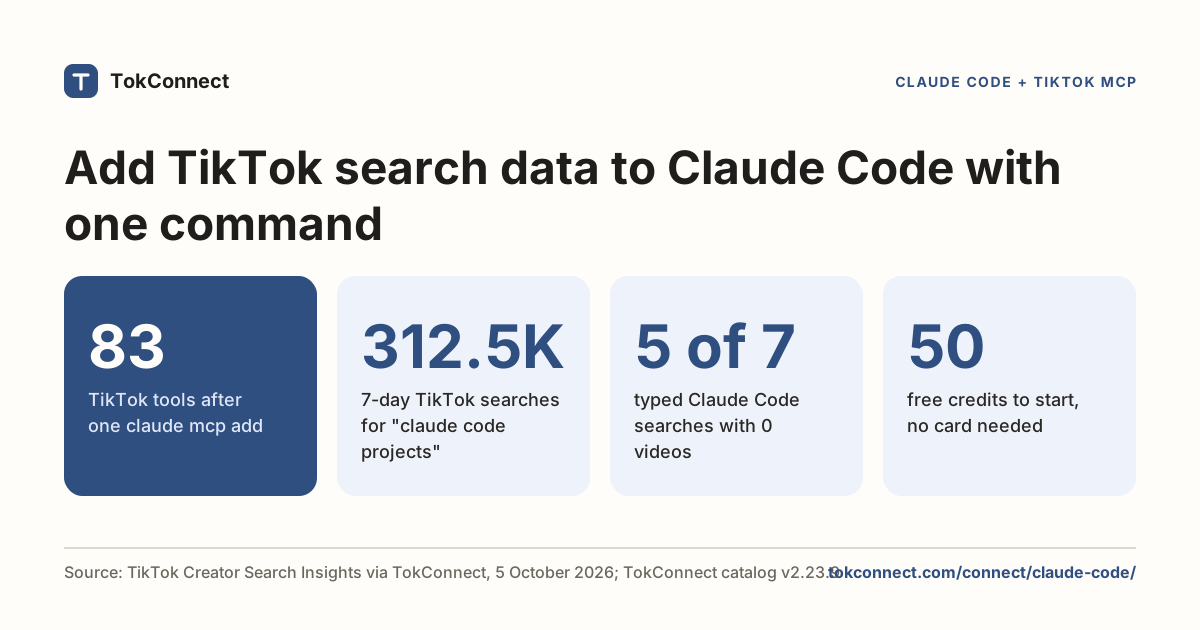
envblock of an MCP server entry, not inheaders, according to its MCP docs.TokConnect's MCP gives Gemini CLI 34 TikTok research tools, TikTok Shop sales estimates included, and new accounts start free with no card.
All 5 statistics
All 20 records TikTok returned for "gemini ai" on 5 October 2026 were topic groups that pool many searches, most of them about Gemini image prompts.
"vibe coding tips" was searched 33,610 times on TikTok in the 7 days to 5 October 2026, and TikTok matched 0 videos to it.
Frequently asked questions
Where does Gemini CLI store MCP servers?
In settings.json: .gemini/settings.json in the project for project scope, which is the default for gemini mcp add, or ~/.gemini/settings.json with --scope user. Both use the same mcpServers object, per the Gemini CLI MCP docs.
Should I use url or httpUrl in Gemini CLI settings?
httpUrl for a Streamable HTTP server like TokConnect; url is reserved for SSE in the published docs. Version 0.25.0's own mcp add writes url with "type": "http" instead, which also works. Letting the command write the file saves you the choice.Gemini asks me to confirm every TikTok request. Can I stop that?
That is the default trust: false setting on the server entry, not a permission fault. You can set trust: true for a server you control, but the confirmation step is a cheap guard while you are learning the tools.
Can I use an environment variable for the API key in Gemini CLI?
Not in the header. Gemini CLI's docs say variables are expanded only in a server's env block, which is passed to local stdio servers, so ${TOKCONNECT_TOKEN} in headers is sent as literal text and gets a 401. Keep the key in the user-scope settings file, or use OAuth sign-in instead.
Does Gemini CLI support OAuth for TikTok MCP servers?
Its docs describe OAuth discovery and dynamic client registration for remote servers, with /mcp auth to sign in. TokConnect supports that sign-in, so it should work without a key. The steps on this page use the key route.
Sources and data
- MCP servers with the Gemini CLI (GitHub docs, checked 5 October 2026)
- MCP servers (geminicli.com docs)
- MCP transports: Streamable HTTP (Model Context Protocol specification)
- MCP authorization (Model Context Protocol specification)
- TikTok searches about Gemini AI and AI tools, pulled 5 October 2026 (snapshot)
- TikTok autocomplete pulled 19 September 2026 (snapshot)