
Give Claude all of TikTok. Add TokConnect as a custom connector and Claude can see what people search, watch, say and buy: videos, creators, comments, transcripts, hashtags, sounds, search demand and TikTok Shop sales. No API key, and it works on the Free plan.
- Open Connectors. In Claude Desktop or on claude.ai, go to Customize → Connectors, press + Add, then Add custom connector.
- Add TokConnect. Name it TokConnect, paste
https://mcp.tokconnect.com/mcp, press Continue, keep the sign-in settings Claude detects, then press Add. - Sign in. Continue with Google and press Allow. In a chat, press + → Connectors, turn TokConnect on and ask, for example, "What protein powder is selling on TikTok Shop this month, and which creators sell it?"
With TokConnect connected, Claude answers TikTok questions with real numbers on the desktop app, claude.ai and the mobile apps at once.
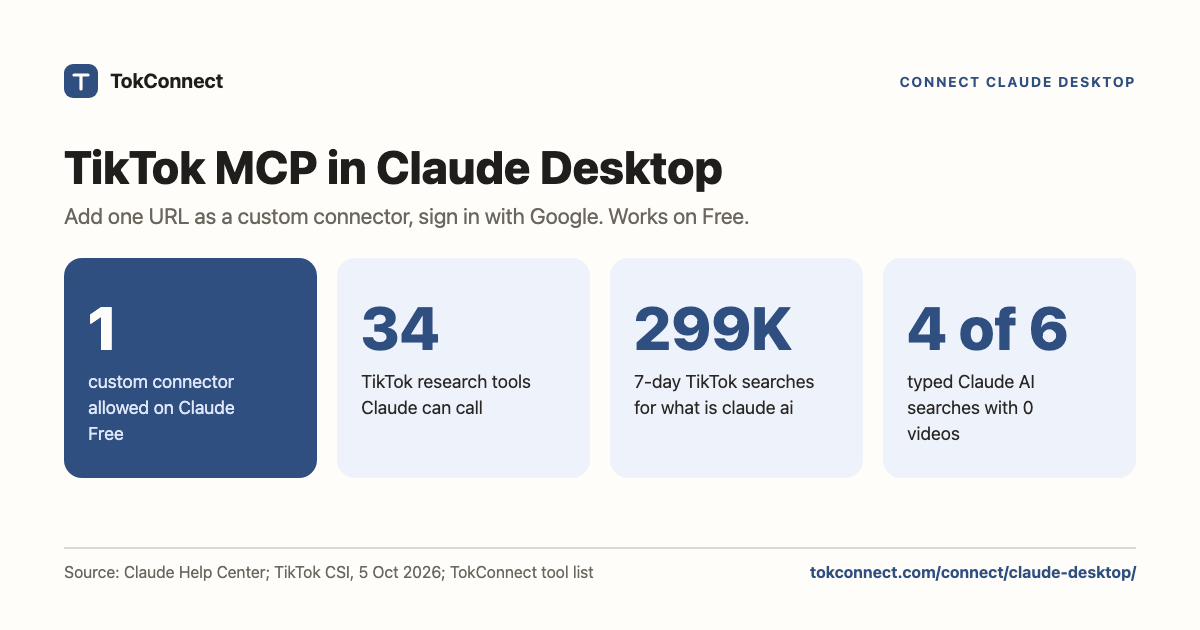
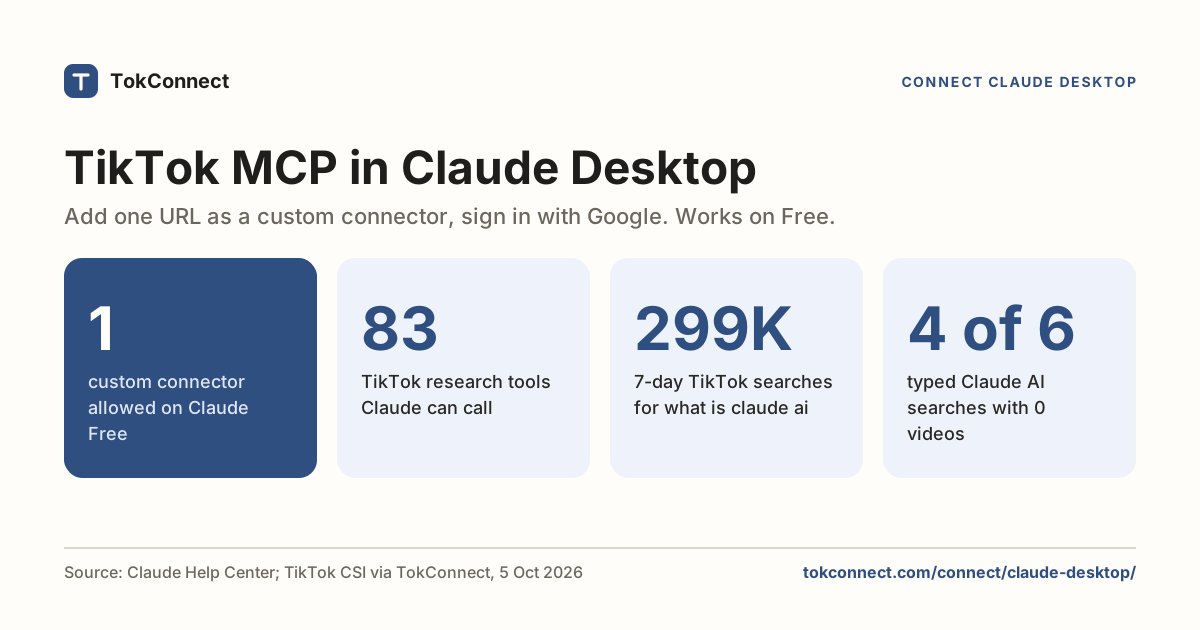
Every plan, Free included, gets all 34 tools. Free gives 50 credits once, one credit pays for one lookup and failed lookups cost nothing. Paid plans start at $34.99 a month billed yearly ($49 billed monthly), with 500 credits a month on Starter.
- Add
https://mcp.tokconnect.com/mcpunder Customize → Connectors → + Add → Add custom connector, keep the sign-in settings Claude detects, continue with Google and press Allow. No API key. - If Claude asks about the OAuth client, pick Register automatically. No client ID or secret is needed.
- Custom connectors work on Free (one connector), Pro, Max, Team and Enterprise. On Team and Enterprise an owner adds it under Organization settings first.
- Prefer a key? Anthropic's add screen now takes request headers, so
Authorization: Bearer YOUR_KEYworks without the old mcp-remote bridge. - Turn the connector on per chat with + → Connectors. You can disconnect under Connected apps on app.tokconnect.com.
How to add the TikTok MCP to Claude Desktop
- Open Connectors. In Claude Desktop or on claude.ai, go to Customize → Connectors (claude.ai/customize/connectors).
- Add a custom connector. Press + Add, then Add custom connector.
- Name it and paste the URL. Enter
TokConnectas the name andhttps://mcp.tokconnect.com/mcpas the remote MCP server URL, then press Continue. - Check the sign-in settings. Claude shows the authentication settings it detected. Keep sign-in on (Sign in now or Sign in when needed). If you change the OAuth client, pick Register automatically, which is the dynamic client registration TokConnect supports, not Use your own OAuth client. Leave Request headers empty for this route. Press Continue, then Add.
- Sign in. A TokConnect page opens: continue with Google, then press Allow.
- Switch it on in a chat. In a conversation, press + → Connectors and turn on TokConnect, then try the test prompt further down this page.
Step 3 is one paste with the helper: Open the Add to Claude helper
The "Use your own OAuth client" option takes a client ID and secret that TokConnect never issued, so the sign-in would not match. Let Claude detect the settings or register automatically.
What you can ask once connected
Ask in plain words. No tool names needed.
Use TokConnect. What are people searching on TikTok about [your niche] that no video answers yet?
Paste it into Claude once TokConnect is connected.
Use TokConnect. What [your product] is selling on TikTok Shop this month, and which creators are selling it?
Paste it into Claude once TokConnect is connected.
Use TokConnect. What do people say in the comments under the top [your product] videos on TikTok?
Paste it into Claude once TokConnect is connected.
Which Claude plans can add a custom connector?
All of them, with a limit on Free and an extra step on Team and Enterprise.
Free: one custom connector. Pro and Max: yes, you add it. Team and Enterprise: an owner adds it under Organization settings → Connectors (Add, Custom, Web), then each member presses Connect under Customize → Connectors.
Source: Get started with custom connectors using remote MCP (Claude Help Center), checked 5 October 2026. The article says custom connectors work on claude.ai, Claude Desktop, Cowork and the mobile apps.
On Team and Enterprise, each person still signs in with their own Google account on the sign-in page. Usage counts against whichever TokConnect account approves the connection.
Setup details: what happens when you press Allow
The steps on this page follow Anthropic's custom connectors article, checked 5 October 2026, and use its wording for Claude's screens. TokConnect tested its OAuth sign-in end to end on 28 September 2026, with a script acting as the client and a real TikTok request. Test notes.
Claude signs in with OAuth 2.1, in four steps:
- On its first call without credentials, the server answers with a pointer to its sign-in service at
app.tokconnect.com. - Claude reads that service's settings and registers itself.
- Claude opens the consent page, where you continue with Google and press Allow.
- Claude gets a token. PKCE is required, so the approval only works for the Claude session that asked for it.
No key sits in a config file. Claude holds a token tied to your account, and it uses the same TokConnect account as your API key and the research agent.
To see or cut the link, open Connected apps on app.tokconnect.com/mcp. Claude shows up there after you press Allow, and Disconnect ends its access at once. Removing the connector under Customize → Connectors tidies up the Claude side.
OAuth 2.1 with PKCE is what the MCP authorization spec asks remote servers to use, which is why Claude and ChatGPT can both sign in to TokConnect the same way.
Your first TikTok MCP call in Claude Desktop
With TokConnect switched on in the chat, ask a small question first. It proves the whole chain works.
Use the TokConnect connector. Call demand_keywords with keyword "protein" and limit 3, and show me the raw result.
Paste it into Claude once TokConnect is connected.
The same autocomplete question returned this:
{
  "count": 3,
  "suggestions": [
    { "text": "protein" },
    { "text": "protein for gym" },
    { "text": "protein recipes" }
  ]
}
Data: TikTok autocomplete via TokConnect, pulled 19 September 2026. Open the snapshot. Autocomplete is live, so your third line may differ.
A working connection lists TokConnect's full tool set: 34 tools. The TikTok MCP guide explains each one, and our comparison of TikTok MCP servers shows how the set compares with other servers.
Use TokConnect. Call product_top_selling for "[your product]" with window 30d and limit 10. Show each product's price, estimated revenue, estimated units and number of creators selling it, then call product with method creators on the top one and list who drove its sales.
Paste it into Claude once TokConnect is connected.
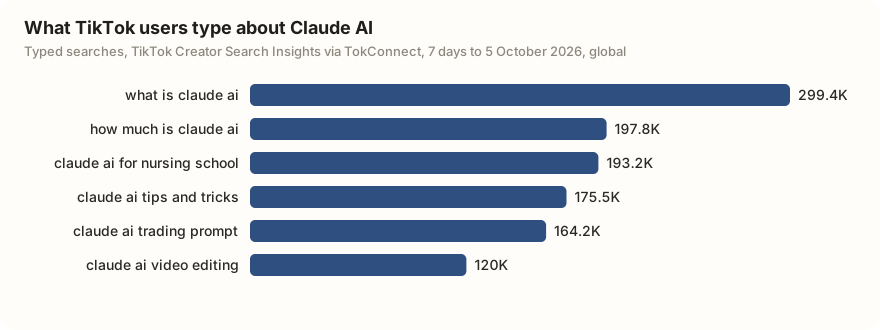
Once that works, ask a real question. Here is what TikTok users typed about Claude itself in the 7 days to 5 October 2026. Eight of the 20 results were typed searches, and the six biggest are below; the rest were TikTok's topic groups, several about unrelated characters named Claude.
| Typed search | Searches, last 7 days | Videos listed |
|---|---|---|
| what is claude ai | 299,450 | 867 |
| how much is claude ai | 197,759 | 0 |
| claude ai for nursing school | 193,219 | 0 |
| claude ai tips and tricks | 175,517 | 0 |
| claude ai trading prompt | 164,183 | 0 |
| claude ai video editing | 119,987 | 304 |
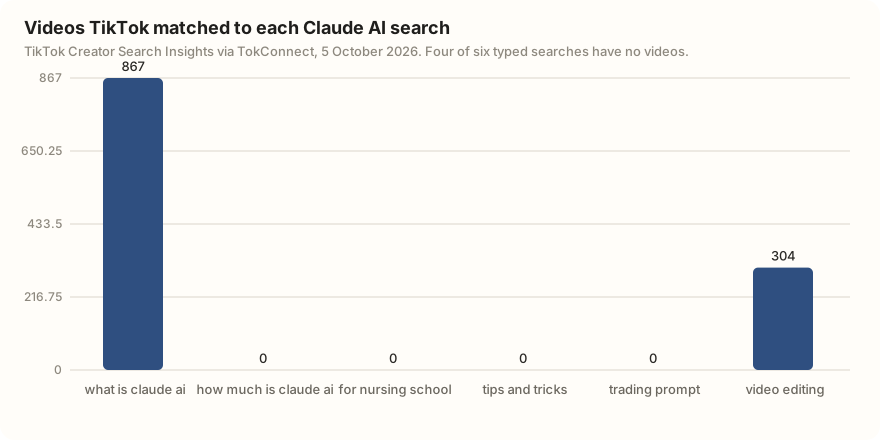
Use the TokConnect connector. Search TikTok topics for "[your niche]", list the phrases people type with their 7-day searches and video counts, and flag the ones with zero videos. Keep TikTok's generated topic groups in a separate list.
Paste it into Claude once TokConnect is connected.
Errors and fixes
| What you see | Cause | Fix |
|---|---|---|
| Free plan: you cannot add another custom connector | Free allows one. | Remove the other custom connector, or move to Pro or Max. |
| Team or Enterprise: no option to add a custom connector | Only owners can add one for the organization. | Ask an owner to add https://mcp.tokconnect.com/mcp, then press Connect yourself. |
| You press Connect and nothing opens | A popup blocker stopped the sign-in window. | Allow popups for claude.ai, then press Connect again. |
| The TokConnect page says "invalid redirect" | The sign-in link was reused, bookmarked or opened outside the flow. | Close it and start again from Connect in Claude. |
| Sign-in fails after you chose "Use your own OAuth client" | Claude sent a client ID TokConnect never issued. | Remove the connector and add it again, letting Claude register automatically. |
| Connected, but Claude answers without TikTok data | The connector is off in this chat. | Press + → Connectors and turn TokConnect on, then ask again. |
| A request fails with an out-of-credits error (HTTP 402) | Your credits are used up. | Check your balance or change your plan on the connect page, or see pricing. |
| A tool runs and returns nothing | TikTok had no match for that query. | Shorten the keyword, or see troubleshooting. |
For a stuck connection, remove the connector in Claude, press Disconnect under Connected apps on app.tokconnect.com, and add it again from step 1. The same steps work for ChatGPT, and Claude Code takes a key in one terminal command.
Alternative: use your API key instead of sign-in
Anthropic's add screen now has a Request headers step for servers that take a fixed key. If you would rather use the key from your API key page, turn sign-in off and add one header: name Authorization, value Bearer YOUR_TOKCONNECT_KEY. Claude sends it on every request. This route follows Anthropic's description; the sign-in route above needs no key at all.
Older route: mcp-remote (config file)
Before custom connectors took headers, the only way to use a key in Claude Desktop was a local bridge, mcp-remote, which adds your key as a header. It still works. Open the Claude menu, then Settings → Developer → Edit Config. That opens claude_desktop_config.json, which lives at ~/Library/Application Support/Claude/claude_desktop_config.json on macOS and %APPDATA%\Claude\claude_desktop_config.json on Windows, per the MCP quickstart for Claude Desktop. Add this:
{
  "mcpServers": {
    "tokconnect": {
      "command": "npx",
      "args": [
        "-y",
        "mcp-remote",
        "https://mcp.tokconnect.com/mcp",
        "--transport", "http-only",
        "--header", "Authorization:${AUTH_HEADER}"
      ],
      "env": {
        "AUTH_HEADER": "Bearer YOUR_TOKCONNECT_KEY"
      }
    }
  }
}
Keep Authorization:${AUTH_HEADER} with no space after the colon and put the whole value Bearer YOUR_TOKCONNECT_KEY in the env entry AUTH_HEADER. The mcp-remote README notes that Claude Desktop on Windows mangles spaces inside args. The app needs Node on its own PATH, and it reads the file only at launch, so quit fully and reopen. If a 401 comes back, check mcp-server-tokconnect.log in Claude's logs folder (~/Library/Logs/Claude on macOS, %APPDATA%\Claude\logs on Windows). Servers in this file only run in Claude Desktop; Anthropic notes they are not available on claude.ai or in Cowork.
How we got these numbers
Setup facts come from Anthropic's custom connectors article and the MCP quickstart for Claude Desktop, both read on 5 October 2026. Since our 28 September read, Anthropic's article had changed the add flow (Name and URL, then Authentication, OAuth client and Request headers) and added request headers for fixed API keys; the plans and the one-connector limit on Free were unchanged. TokConnect's OAuth flow was tested end to end with a script on 28 September 2026; the Claude screens follow Anthropic's article.
The TikTok figures come from one Creator Search Insights topic search for "claude ai" (20 topics) made through TokConnect on 5 October 2026. Searches are TikTok's global count for the last 7 days; videos are those TikTok matched to the topic. We left out TikTok's topic groups (5,000,000 or more, or 1,000,000 or more with a first daily reading under 5% of the last) and the two smallest typed searches, "website claude ai" (15,904) and "cara setting claude ai" (1,499), from the table. The autocomplete example is from 19 September 2026. Data: Claude searches, autocomplete call, tool catalog, 21 October 2026.
Key statistics
Custom connectors using remote MCP are available on Claude Free, Pro, Max, Team and Enterprise, and Free users are limited to one custom connector, according to Anthropic's help article.
Claude's Add custom connector screen accepts a sign-in or fixed request headers, such as an API key sent on every request, according to Anthropic's help article.
TokConnect gives Claude 34 TikTok research tools, TikTok Shop sales estimates included, and new accounts start free with no card.
All 5 statistics
"what is claude ai" was searched 299,450 times on TikTok in the 7 days to 5 October 2026, with 867 videos matched.
"how much is claude ai" was searched 197,759 times on TikTok in the 7 days to 5 October 2026, and TikTok matched 0 videos to it.
Frequently asked questions
Can I paste a TikTok MCP URL into Add custom connector?
Yes. TokConnect supports the sign-in Anthropic's custom connectors article describes. Name the connector, paste https://mcp.tokconnect.com/mcp, press Continue, keep the detected sign-in settings, press Add, and approve on the TokConnect page.
Do I need an API key for the TikTok MCP in Claude Desktop?
No. You sign in with Google on a TokConnect page and press Allow. If you prefer a key, Anthropic's add screen now accepts request headers, so you can send Authorization: Bearer YOUR_KEY instead. Clients like Claude Code and Cursor also take the key.
Does it work on the Claude Free plan?
Yes. Anthropic allows one custom connector on Free, so TokConnect can be that one. Pro and Max have no such cap, and on Team and Enterprise an owner adds the connector for the organization before members connect.
Is the connector in Claude Desktop the same as on claude.ai?
Yes. Anthropic says custom connectors work on claude.ai, Claude Desktop, Cowork and the mobile apps, so adding TokConnect in one makes it available in the others. You still switch it on in each chat under + → Connectors. Servers added through claude_desktop_config.json are different: they run only in Claude Desktop.
How do I remove the TikTok connector from Claude?
Press Disconnect under Connected apps on app.tokconnect.com/mcp, which ends Claude's access at once. Then remove the connector under Customize → Connectors.
Why does my mcp-remote bridge start and then fail with 401?
Almost always the header. The mcp-remote README documents that Claude Desktop on Windows, Cursor and Codex CLI mangle spaces inside args. Keep the arg as Authorization:${AUTH_HEADER} with no space after the colon, and put the whole value Bearer YOUR_TOKCONNECT_KEY in the env entry AUTH_HEADER. Or skip the bridge and use the connector.
Sources and data
- Get started with custom connectors using remote MCP (Claude Help Center, checked 5 October 2026)
- Use connectors to extend Claude's capabilities (Claude Help Center)
- Connect to local MCP servers: Claude Desktop config file locations (Model Context Protocol docs, checked 5 October 2026)
- Connect to remote MCP servers (Model Context Protocol docs)
- MCP authorization specification (Model Context Protocol)
- mcp-remote (GitHub)
- TikTok searches about Claude AI, pulled 5 October 2026 (snapshot)
- TikTok autocomplete pulled 19 September 2026 (snapshot)